 Chorium
Docs/Working in a Workspace
Working in a Workspace
Once a workspace is running, this is where you and the agent actually get things done. Here's how to talk to the agent and use the tools around it.
The embedded terminal
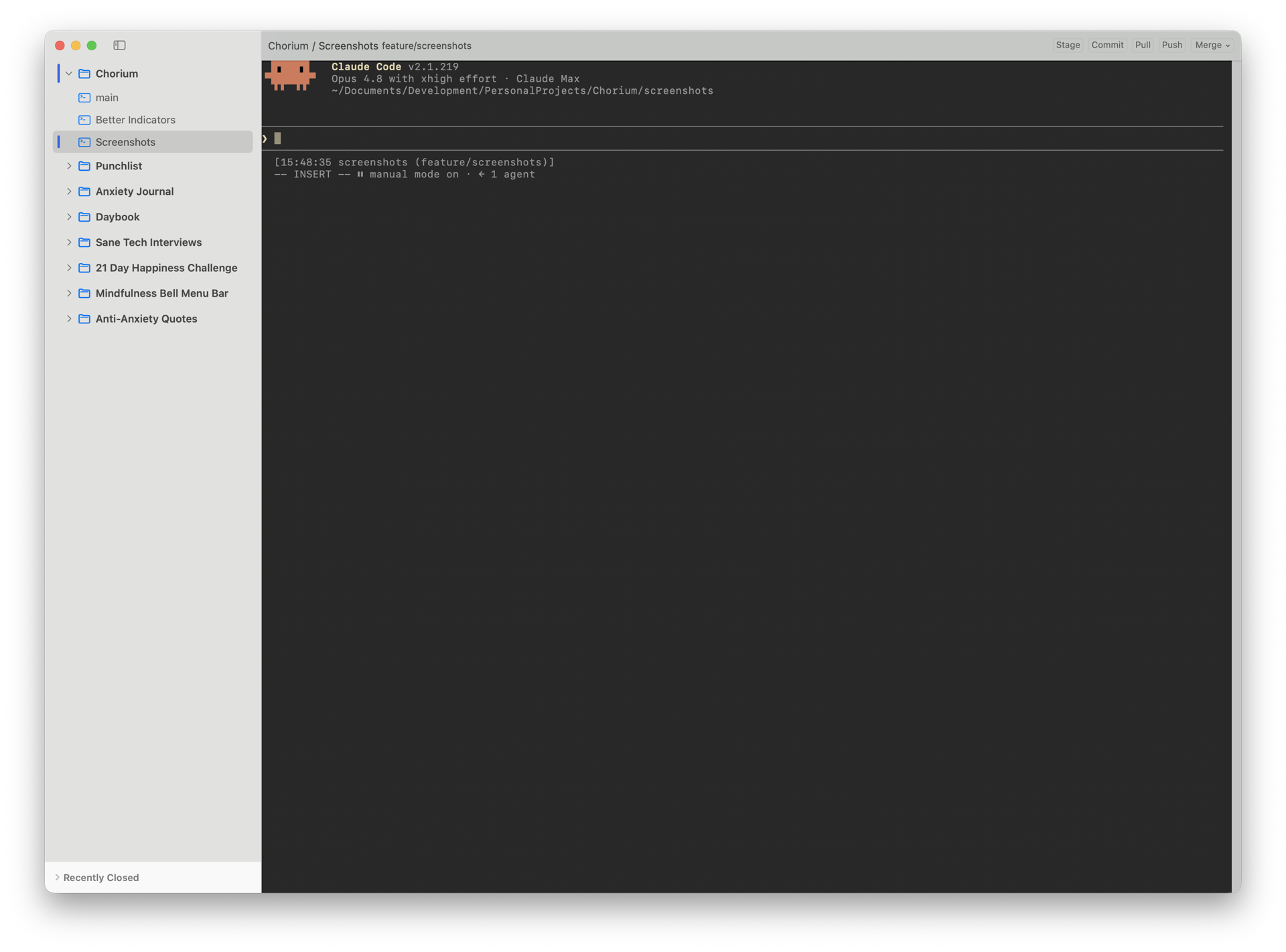
Open any workspace and you drop straight into its terminal — the same live session the agent is working in. You talk to the agent by typing here, exactly as you would in a normal terminal, and you watch the work happen line by line instead of reading a summary of it.
- Full scrollback. Scroll up to read everything the agent has done in this workspace, not just the latest output.
- One terminal per workspace. Each workspace has its own session, so switching between workspaces switches between their agents cleanly.
The toolkit panel
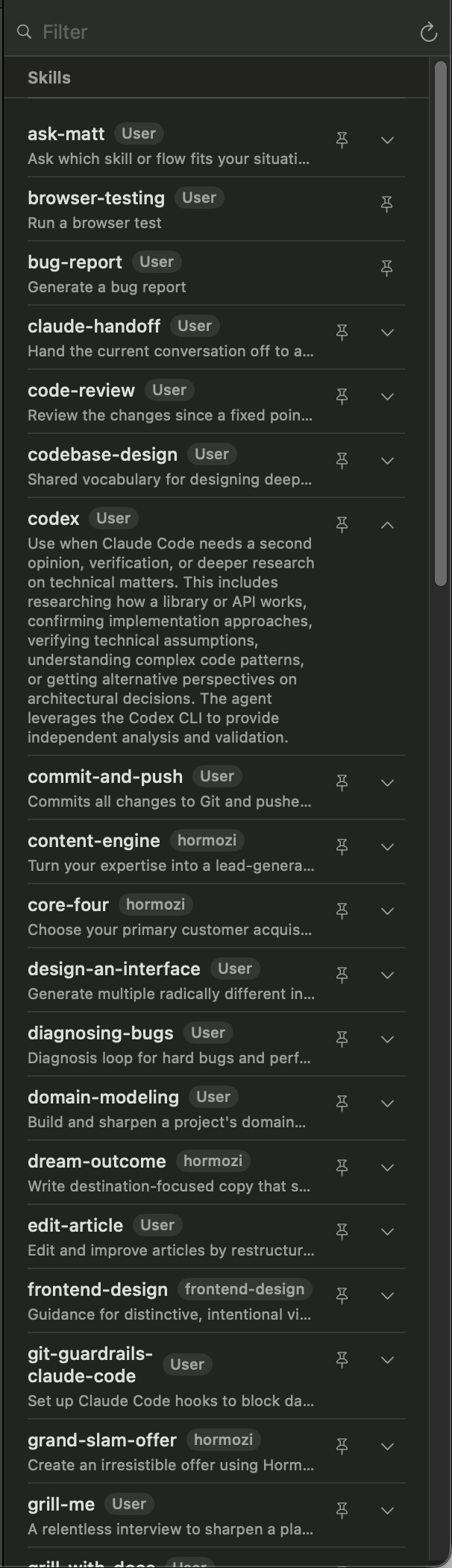
The toolkit panel is a side inspector that lists the skills and commands available to the agent in the focused workspace — the shortcuts and slash-commands it understands. Toggle it with View → Toolkit (⌥⌘ K). It appears when a workspace is focused. In the panel you can:
- Filter to find a skill or command by name.
- Pin favorites so the ones you use most stay at the top.
- Click to insert a command straight into the terminal, so you don't have to remember or retype it.
Managing the agent
The Agent menu has three actions for the workspace you're in:
- Restart Agent (⌘ R) — stop and relaunch the agent in this workspace. Useful if a session gets wedged.
- Switch Agent (⇧⌘ A) — change which agent runs here, even after the workspace was created.
- Usage (⌘ U) — see what this workspace has cost. See The Dashboard for how spend is tracked.