 Chorium
Docs/Managing Workspaces
Managing Workspaces
Create workspaces for new work, tuck away the ones you're not using, and clean up when you're done. Here's the full lifecycle.
Branch templates
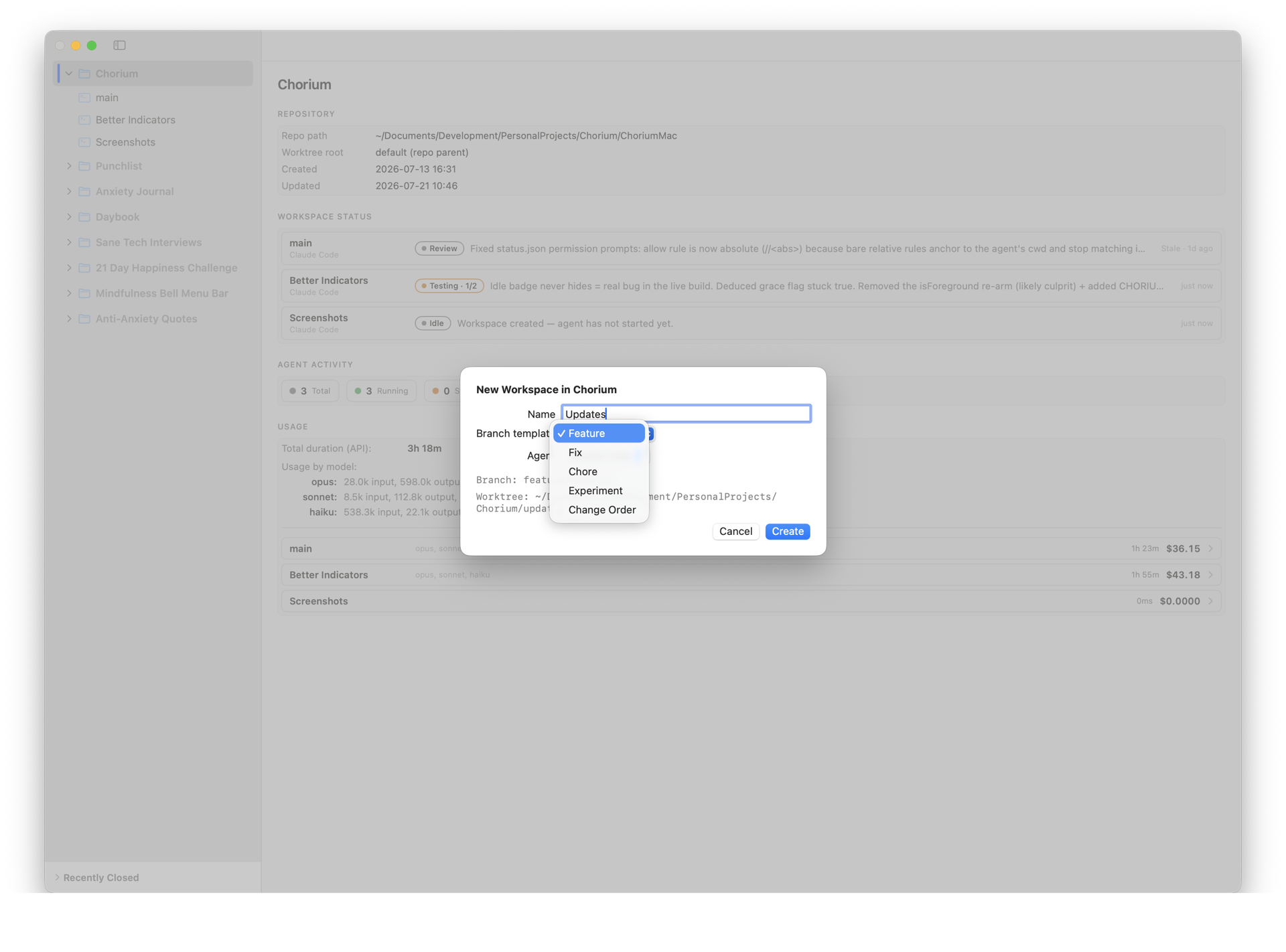
When you create a workspace, you pick a branch template. It sets a prefix on the branch name so your repository stays tidy and every branch says what it's for:
- Feature →
feature/… - Fix →
fix/… - Chore →
chore/… - Experiment →
experiment/… - Change Order →
change_order/…
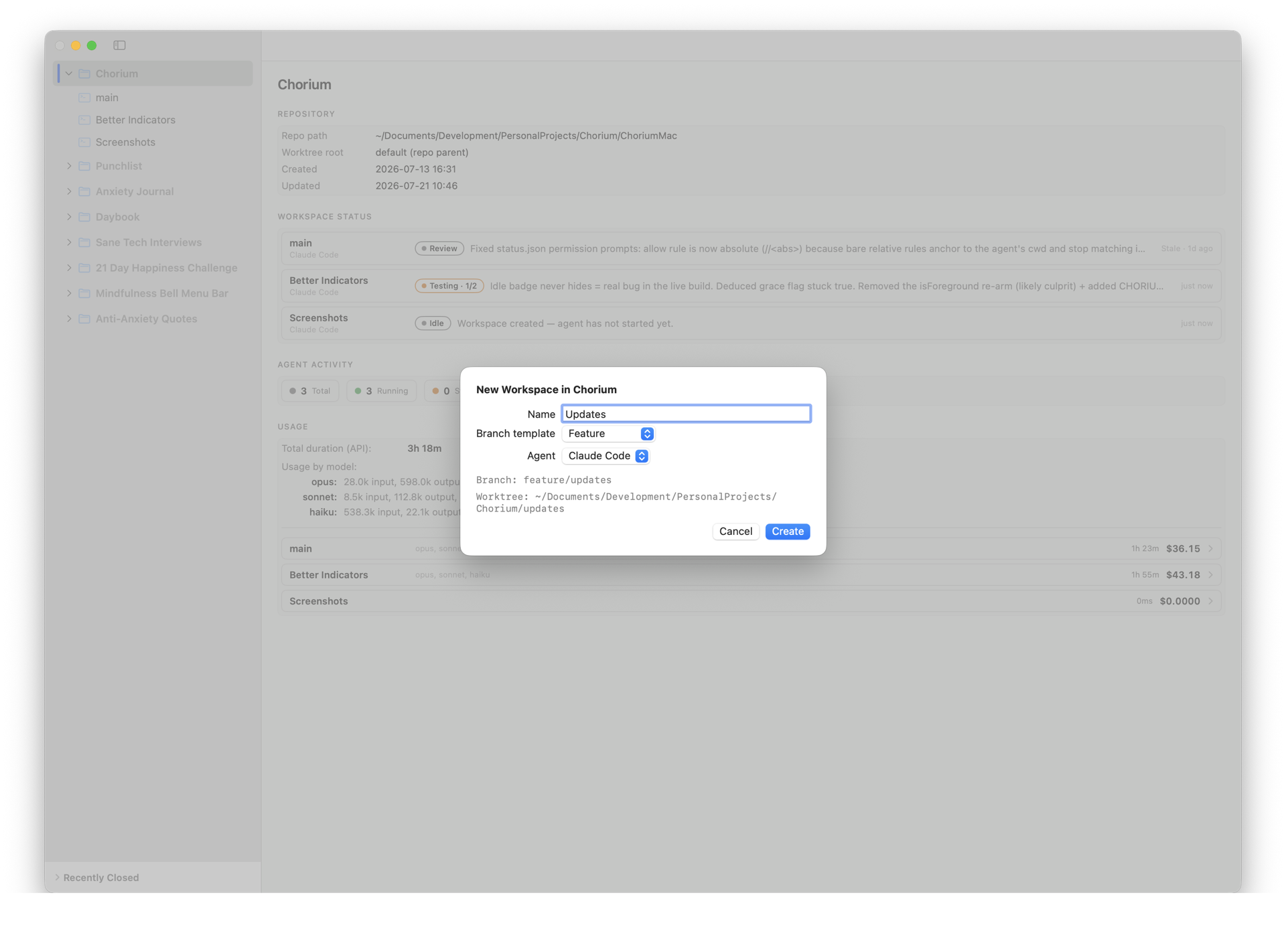
Type a name like "dark mode" under the Feature template and Chorium suggests feature/dark-mode.
Creating a workspace
As you type, Chorium previews the branch name and the folder it will create, and checks them before you commit. It will:
- Stop you if the target folder can't be written, or if something already exists at that path.
- Warn you if the location is inside a cloud-synced folder like Dropbox or iCloud, which can interfere with git.
When you confirm, Chorium creates the git worktree, launches the agent, and opens the workspace. See Getting Started for a step-by-step first run.
Closing and reopening
- Close (⌘ W) tucks a workspace away — it leaves the board and its terminal closes, but nothing is deleted. Your branch and files stay on disk.
- Reopen Last Closed (⇧⌘ T) brings back the most recently closed workspace. Chorium keeps a per-project list of recently closed workspaces (up to 20) so you can restore any of them.
Deleting for good
When you're truly finished with a workspace, permanently delete it. This removes its git worktree from disk. Chorium deletes the branch only if it has already been merged, so you can't lose unmerged work by accident.
Docker cleanup
If a workspace started Docker containers, deleting it can leave them behind. Chorium detects the related containers and offers a cleanup sheet:
- Containers are listed and checked by default — they belong to this workspace.
- Volumes and networks are shown too, but named ones are flagged as possibly shared with your main checkout, so you don't remove something another workspace still needs.
Review the list, keep what's shared, and remove the rest.